Clone site from repo
This guide will show you how to clone a repository and setting up a local copy of the site.
Table of Contents
Exporting live installation
Access the W’s server.
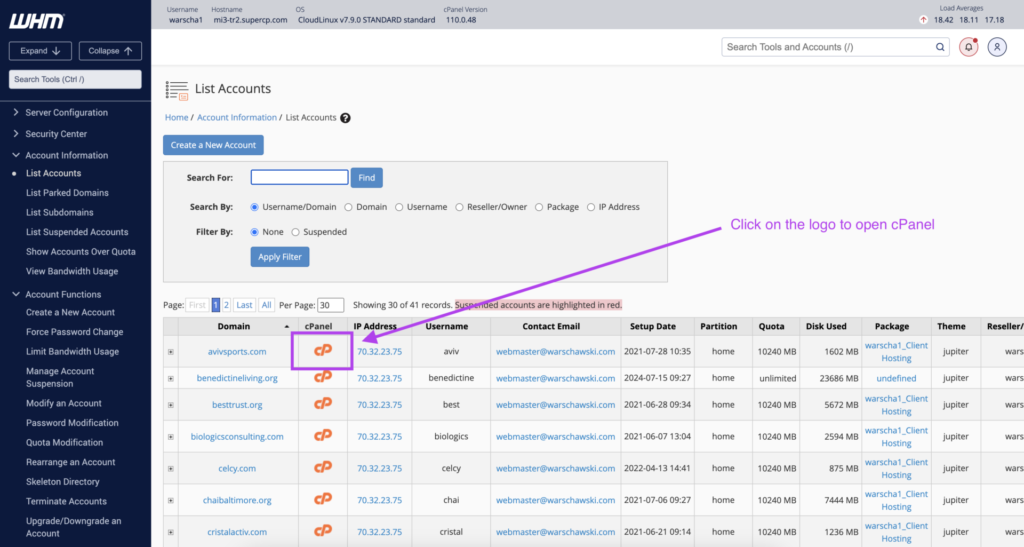
Navigate to the desired site and open his cPanel. To access the site’s list, follow that route: Home / Account Information / List Accounts.
Export the database using phpMyAdmin. For the bast majority of the sites, Quick export would work.
Export uploads from cPanel’s FileManager. Follow that process: Compress it, download it and remove the compressed file when the download has completed. Remove it skipping the trash.
Creating the local database
In Sequel Ace, create a new database. You can create one opening the Choose Database dropdown, and selecting Add Database. Use prefix “wdev_”.
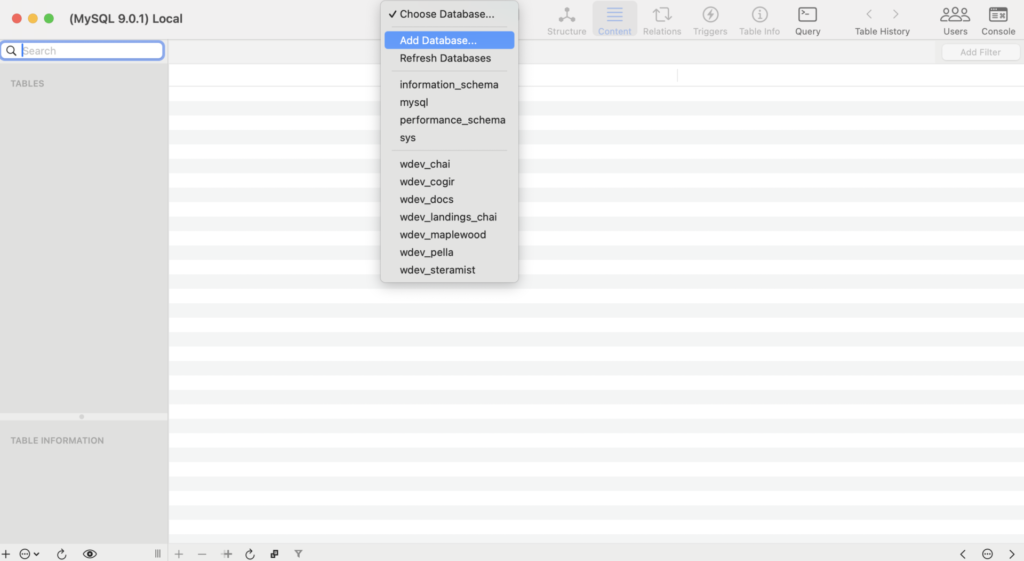
Import the live database into the new local database. File / Import, and select the .sql file exported from phpMyAdmin.
Cloning the repo
Open W’s bitbucket account, and navigate to the desired repo. You can find all the repositories inside “Repositories”.
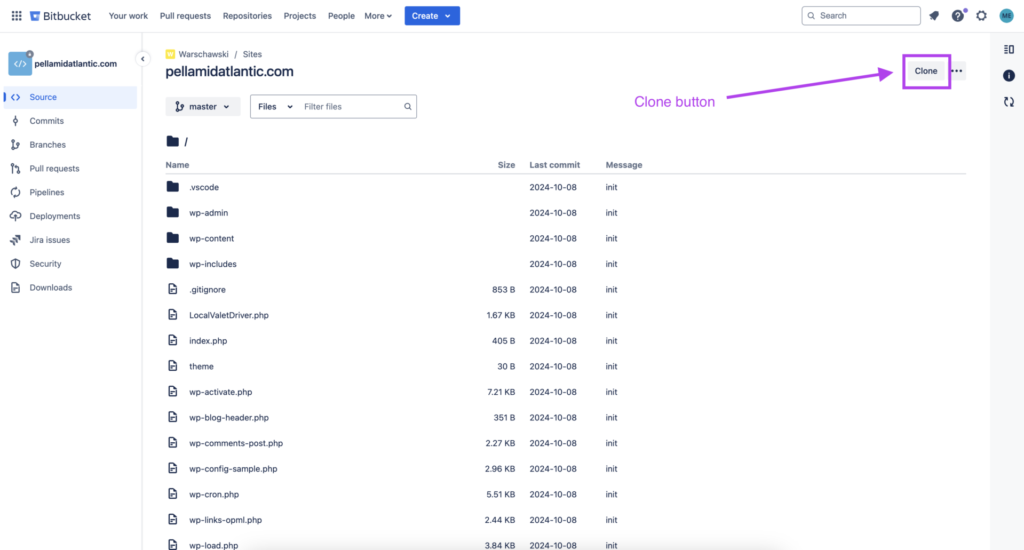
Clone the repo from bitbucket using SSH. Inside repository’s principal page “Source”, there’s a “Clone” button. Copy the git command.
In your terminal, navigate to your “Sites” folder. Execute the git command. Add “name” after the git command to create a folder where will run the installation (“name” will be the name of the folder”):
git clone [email protected]:warschawski/repositorie-git nameValet’s link
After folder it’s created and installation completed, navigate to the new folder.
Create Valet’s link in the project directory:
valet link link-nameAlso, secure the new link:
valet secure link-nameTip: you can check the actual valet’s links running:
valet linksFinal configuration
Open the project using your code editor.
Clone “wp-config-sample.php”. You can find it inside the project’s root. After cloning, edit the following items:
- define( ‘DB_NAME’, ‘database_name_here’ );
Replace ‘database_name_here’ for your database’s name created previously. - define( ‘DB_USER’, ‘username_here’ );
Replace ‘username_here’ for ‘root’. - define( ‘DB_PASSWORD’, ‘password_here’ );
Replace ‘password_here’ for ”.
Replace the site url in the database. Use wp cli:
wp search-replace live-url local-url --all-tables --dry-runAdd the “uploads” folder into local files, inside “wp-content” folder. Sometimes you’ll find an existing “uploads” folder. Before copying the exported one, make sure the “new” one it’s empty and proceed to remove it.
Last checks
Make sure you are in the branch you want to work, e.g. you want to work with “dev” branch but by default you have the “main” branch opened. To change the branch, use the following command:
git checkout desired-branch-nameOpen the browser and navigate to local-url and make sure everything looks good.